
Loomium Admins can view and edit crucial account details, such as User Permissions, Loomi-U Course Settings, and Integration Settings, by selecting the Admin Access Control from the main menu.

If a user receives loading dots or does not see a menu option that is needed, Security Group or Users permissions may need to be edited by your Company Admins or Super-Admin.
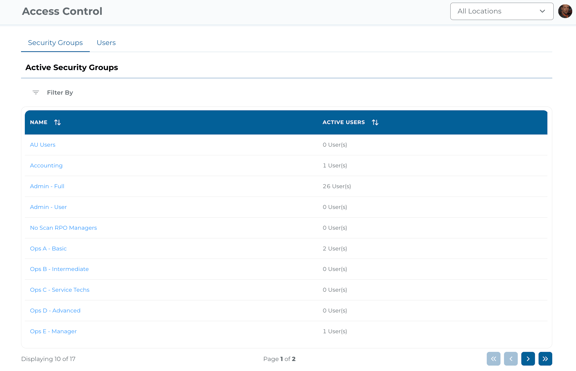
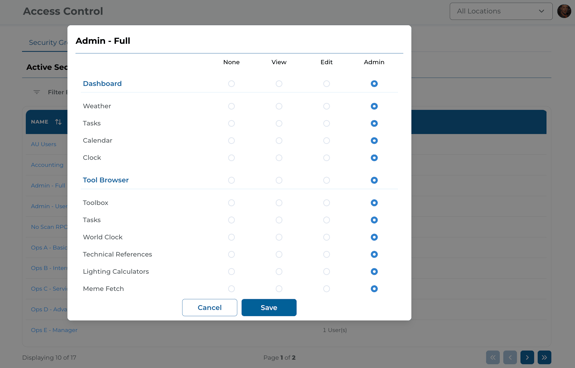
To edit Security Groups or Users permissions, select Access Control from within the Admin drop-down in the main menu. Selecting the Security Groups tab from the top of the Access Control page will display a table view of all groups. Selecting a Security Group name will allow edits to Looms and Integration permissions.
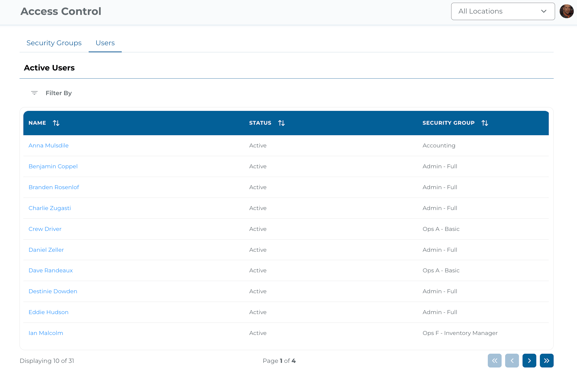
Selecting the Users tab will populate a user table with more details. Select a user's name to populate all available permissions for your company and allow editing. Users have permission tabs for Looms and Integrations. There is also a tab for Details; these details are provided by Flex.
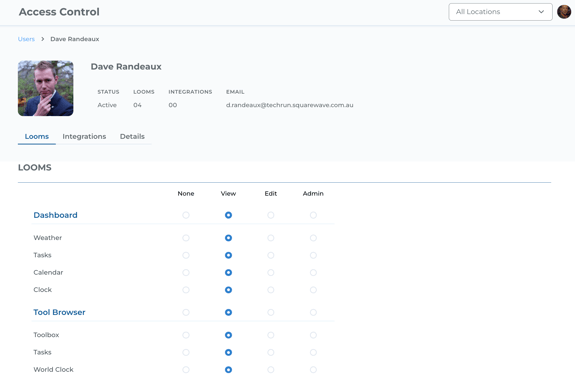
There are four permission levels: None, View, Edit, or Admin.
None will ensure this feature is not seen by the end user or group; does not count towards billing usage. All Security Groups and Users permissions default to None, with the exception of the account Super-Admin.
View will activate the module for the end user to see data from Flex but not adjust the module or its settings.
Edit will activate the module for full view and allows the user to edit views, filters, and widgets.
Admin will activate the full admin view and allow the user to take administrative actions within the module.