
This guide covers how administrators configure which elements and statuses appear in Daybook.
Location: Navigate to Admin > Settings in the navigation bar, then ensure you're on the Global tab. Direct link: https://app.loomium.io/admin/settings
Selecting Daybook Elements
The top table on the Global tab contains a row labeled Daybook Elements. This is where you choose which Flex element types appear in Daybook.
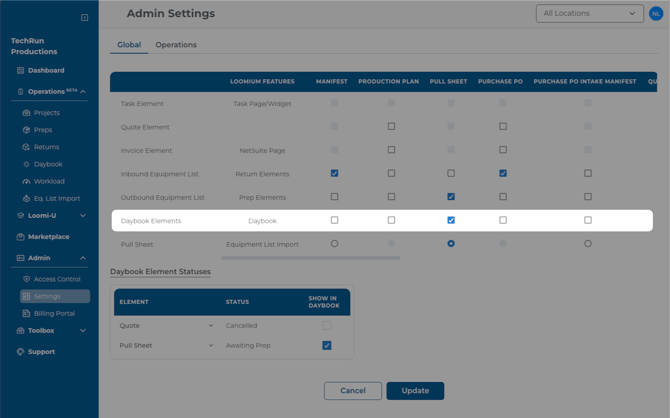
- Locate the Daybook Elements row
- Check the boxes for each element type you want to include (e.g., Quote, Pull Sheet)
- Click Update to save
You can select multiple element types. A warning icon appears if no elements are selected.
Filtering by Workflow Status
Once you've selected at least one element type above, a Daybook Element Statuses section appears below the main table.
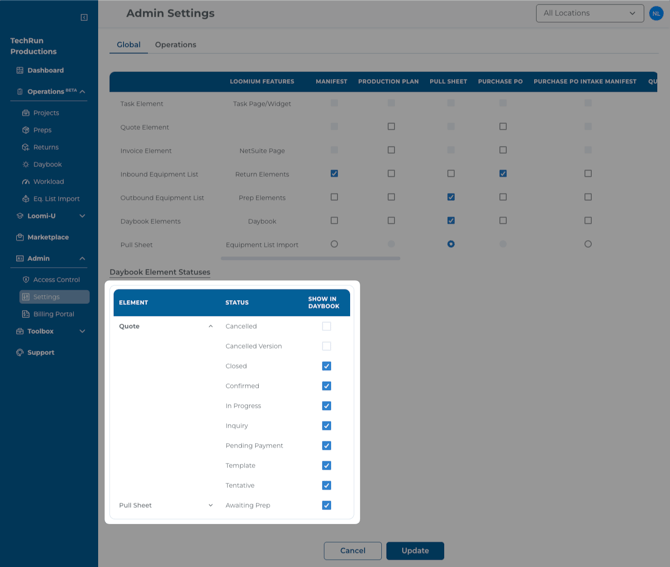
This section shows each selected element type as an expandable group. Within each group, every available workflow status is listed with a checkbox.
- Expand an element type to see its available statuses
- Uncheck any statuses you want to exclude from Daybook
- Click Update to save
Default: All statuses are enabled when an element type is first selected.
Example: If you've selected Quotes as a Daybook element, you might uncheck "Canceled" and "Canceled Version" to hide canceled quotes from the daily view.
Changes take effect the next time a user loads the Daybook page.
Notes
- These are organization-wide settings that affect all users.
- The Cancel button reverts any unsaved changes.
- A success notification appears in the top-right corner after saving.