
Accessing the Tool
- Log in to Loomium using your Flex credentials
- Navigate to Operations → Eq. List Import in the navigation bar
- Direct link: https://app.loomium.io/operations/equipment-list-import
Note: You must have access to the Operations Loom to use this feature.
Preparing Your CSV File
Download the Template
Click the Download Template link at the top of the page to get a CSV file showing the exact format required for import.
Required CSV Format:
"Status","Definition Name","Quantity"
"100022","Truss, 6""X6""X6"", Aluminum","4"
"100023","Truss, 6""X6""X12"", Aluminum","5"
Required Columns:
- Status – Barcode number from your Flex inventory (must be numeric digits only; leave blank for note lines)
- Definition Name – Item description
- Quantity – Number of items (must be a positive whole number)
Importing Equipment Lists
Step 1: Upload Your CSV File
Drag and drop your CSV file into the upload zone, or click to browse and select the file.
Step 2: Enter Element Number
Enter the Element Number for either:
- A parent element (Quote, Event Folder, etc.) – Creates a new Pull Sheet as a child
- An existing empty Pull Sheet – Loads items directly into the existing Pull Sheet without versioning
- An existing populated Pull Sheet – Archives the current version and creates a new versioned Pull Sheet (e.g., " Audio" becomes "Audio V2")
Example: Q25-0032 (Quote number) or PS-00443 (Pull Sheet number)
After entering the element number and clicking elsewhere on the page, Loomium will automatically verify:
- The element exists in your Flex account
- You have permission to create Pull Sheets under this element
- The element type is compatible with Pull Sheet creation
Step 3: Name Your Pull Sheet (Optional)
If creating a new Pull Sheet, you can optionally enter a custom name. If left blank, Flex will generate the name.
If replacing an existing Pull Sheet, this field is disabled—the new Pull Sheet will use a versioned name (e.g., "Audio" becomes "Audio V2").
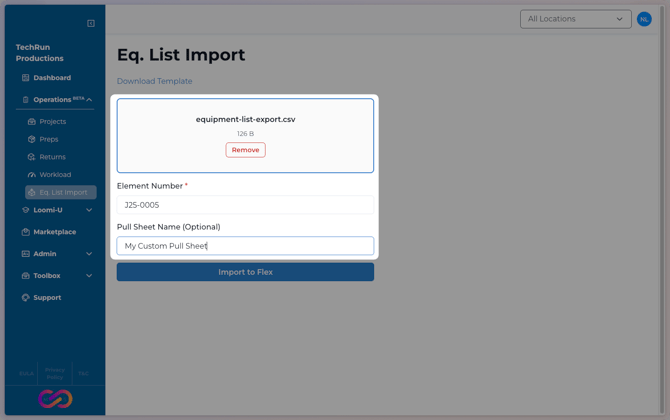
Step 4: Submit
Click Import to Flex to begin processing. Import time varies based on file size:
- Small files (3-5 rows): ~5 seconds
- Large files (150 rows): ~20-40 seconds
Note on Item Order: Loomium automatically sorts items on the Pull Sheet according to your Flex inventory structure (Inventory Tree), which may differ from the order in your CSV file.
Understanding Import Results
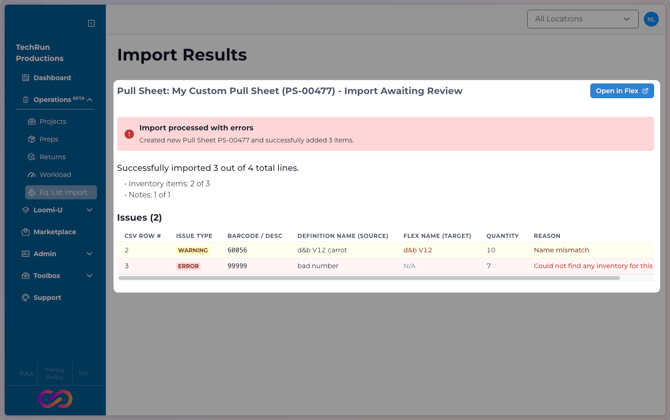
After processing, you'll see the Import Results page with a summary and detailed breakdown.
Summary Statistics
The results page provides a clear "Success vs Total" breakdown:
- "Successfully imported X out of Y total lines."
- Sub-breakdowns: Shows counts for Inventory items (matched barcodes) vs. Note lines.
Success Messages & Status
A dynamic alert bar indicates the overall status:
- Green (Check): 100% Success (no warnings or errors).
- Yellow (Exclamation): Success with Warnings.
- Red/Orange (Warning): Import completed with Errors.
Issues (Warnings & Errors)
Any issues encountered during import are displayed in a unified Issues table.
- Warnings (Highlighted Yellow): Items that were imported but have minor discrepancies (e.g., "Name Mismatch" where the CSV name differs from the Flex inventory name). Action: Review these items in Flex to ensure accuracy.
- Errors (Highlighted Red/Orange): Items that could not be imported (e.g., "Inventory Not Found" for an invalid barcode). Action: These items were skipped. You may need to manually add them in Flex or correct your CSV and re-import.
Table Columns:
- CSV Row #: The row number in your uploaded file (useful for debugging).
- Issue Type: "Warning" or "Error".
- Barcode/Desc: The barcode or description from your CSV.
- Definition Name (Source): The name from your CSV.
- Flex Name (Target): The actual name in Flex (for mismatches).
- Reason: A specific explanation of the issue.
Next Steps: Pull Sheet Review Workflow
After a successful import, the Pull Sheet status in Flex is determined by your administrator's configuration:
- If configured: The Pull Sheet is automatically advanced to the configured status (e.g., "Import Awaiting Review")
- If not configured: The Pull Sheet remains in its initial status (eg., "In Development")
Required Review Process
- Open Pull Sheet in Flex – Click the button on the results page or navigate directly in Flex
- Verify Line Items – Ensure all equipment was imported correctly with proper quantities
- Review Issues – Check any items flagged with warnings to confirm accuracy
- Advance Status (if needed) – If the Pull Sheet is not already in the correct status, use the workflow action in Flex (e.g., "Set Awaiting Prep") to advance the Pull Sheet
- Warehouse Prep – The warehouse team can now begin scanning and prepping equipment
Troubleshooting Common Issues
Cannot Replace Pull Sheet – Items Already Scanned
Error Message: "Cannot replace Pull Sheet PS-XXXXX because items have already been scanned by the warehouse."
Cause: The warehouse has started scanning items out for this Pull Sheet. Loomium prevents replacing Pull Sheets once scanning has begun to avoid disrupting warehouse operations.
Resolution:
- Coordinate with the warehouse team to undo scan, or
- Create a new Pull Sheet instead by using the parent element number (Quote, Event Folder) rather than the Pull Sheet number
Element Number Not Found
Error Message: We couldn't find a Quote, Event Folder, or Pull Sheet with number Q25-0032 in Flex.
Possible Causes:
- Element number was mistyped
- Element doesn't exist in your Flex account
- You don't have permission to create child elements under this parent
Resolution:
- Verify the element number is correct in Flex
- Contact your Flex administrator if you need permission adjustments
CSV Format Errors
Error Message: "Missing required column: Status" (or Definition Name, or Quantity)
Resolution:
- Download the template and compare it to your CSV file
- Ensure all required column headers are present and spelled exactly as shown in the template
- Common issue: Extra spaces or different capitalization in column headers
Advanced Configuration (Administrators Only)
Administrators can configure two aspects of import behavior:
- Target Element Type – Which element type to create (e.g., Pull Sheets vs. Manifests)
- Post-Import Workflow Action – Automatically change the Pull Sheet status after import
Accessing Configuration
- Navigate to Admin → Settings in the navigation bar
- Direct link: https://app.loomium.io/admin/settings
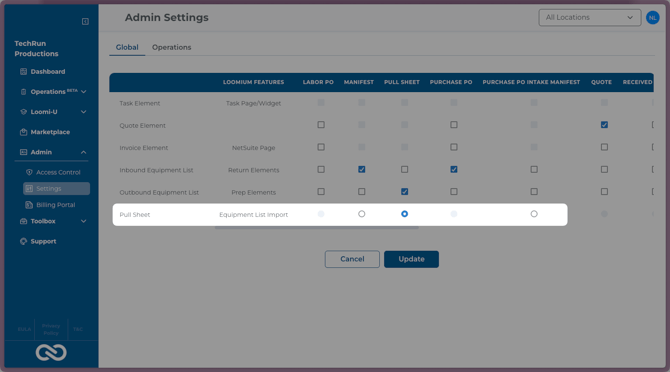
Setting the Target Element Type (Global Tab)
In most cases, the Import target element type is automatically configured and requires no adjustment. Only modify this setting if imports are creating the wrong element type (e.g., Manifests instead of Pull Sheets).
- Ensure you're on the Global tab
- Locate the Pull Sheet row in the settings table
- Find the column header that matches the element type you want to create (e.g., "Pull Sheet")
- Note: Column names may vary based on your Flex configuration. In some systems, "Pull Sheet" might be called something else (e.g., "Página de Retiro" in Portuguese, or a custom name specific to your company)
- Click the radio button in the intersection of the Pull Sheet row and your desired element type column
- Click Update to save the changes
Important: This is a global setting affecting all users in your organization. Coordinate with your team before making changes.
Configuring Post-Import Workflow Action (Operations Tab)
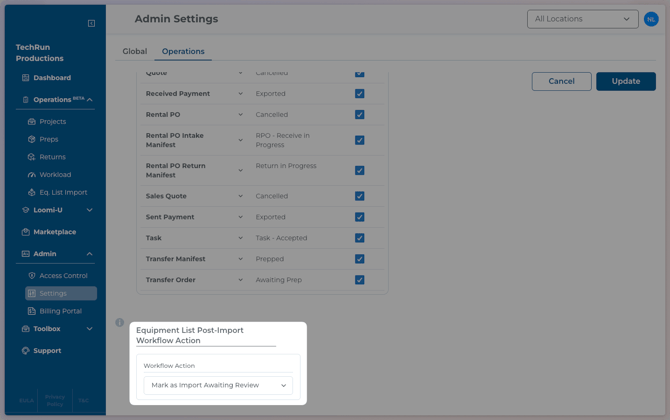
This setting allows you to automatically change the Pull Sheet status after a successful import.
- Navigate to the Operations tab in Admin Settings
- Locate the Equipment List Post-Import Workflow Action section
- Select a workflow action from the dropdown:
- None – No workflow action is executed; Pull Sheet remains in its initial status ("In Development"). No status change message will appear in import results.
- Custom Review Action (Recommended): Select an action that advances the Pull Sheet to a status that alerts your team that the import is ready for verification.
- Click Update to save the changes
Important: This is an organization-wide setting. Changes affect all users performing imports.
Need Help?
For additional support, visit https://support.loomium.io or contact your Loomium administrator.