
The Flex integration ships with defaults that suit most companies, so many teams never open this page. When you do need it, this is where you control how contact data is reconciled between Flex and HubSpot, which Flex element a deal links to, what the Flex cards show on each record, and how often the automatic sync runs. A Transaction Log alongside it records what the integration has done, which is the first place to look when a sync has not gone the way you expected.
This guide is for administrators. For day-to-day use of the cards on your contact, company, and deal records, see the Flex Integration for HubSpot user guide.
Contents
- Opening the settings
- Who can change settings
- Saving your changes
- Contacts tab
- Companies tab
- Deals tab
- Linked card layout
- Financials tab
- Tax rates (one-time setup)
- Scheduler tab
- Transaction Log
- Need help?
Opening the settings
Go to Settings > Integrations > Connected Apps, find Flex Rental Integration by Loomium in your list of apps, and open its Settings tab.
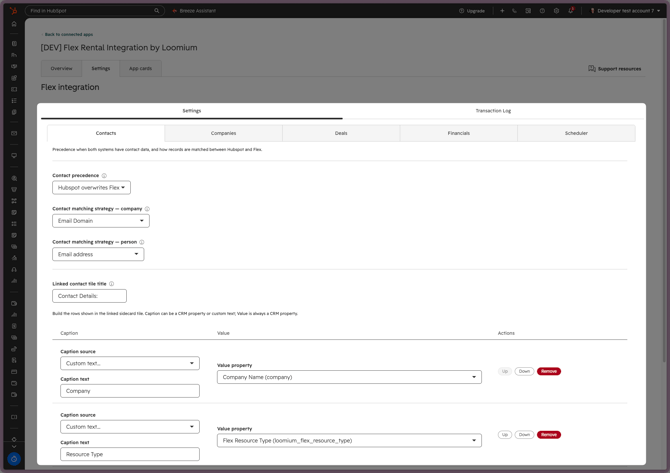
The page opens on Settings, which holds five tabs of its own — Contacts, Companies, Deals, Financials, and Scheduler. Transaction Log sits beside Settings as a second top-level tab.
Who can change settings
You need the HubSpot integrations management permission. Without it the page shows:
Admin access required — You don't have permission to view the Flex integration settings. Ask a HubSpot admin for access.
Settings apply to your whole HubSpot account, not to individual users.
Saving your changes
Changes are not saved as you make them. Unsaved changes appears at the top of the page as soon as you edit anything, and the Save button becomes available. Click Save and you will see Settings saved.
If the save fails you will see "We couldn't save your settings. Please try again." — your changes are still on screen, so click Save again.
Navigating away without saving discards your changes without warning.
Contacts tab
Precedence when both systems have contact data, and how records are matched between HubSpot and Flex.
These three settings govern the scheduled sync for both people and companies.
Contact precedence — sets which system's contact data should be considered most accurate, and therefore overwrites the other. Options:
- Hubspot overwrites Flex (default)
- Flex overwrites Hubspot
- Most recently modified side's data overwrites older data
The winner is chosen for the record, but the sync writes field by field: a field is only overwritten when the winning side actually holds a value, so a blank never erases the other side, and address parts merge rather than replacing the whole address. If someone edits a phone number in Flex and someone else edits an address in HubSpot between two syncs, both edits survive; only where the two sides disagree on the same field does the winner's value replace the other. Choose Most recently modified only if both teams genuinely edit contacts in both systems.
Contact matching strategy — company — determines how existing company contacts are identified as matches and linked between systems. Options: Email Domain (default), or Business Name + Postcode.
Contact matching strategy — person — the same for people. Options: Email address (default), or Employer + First Name + Last Name.
Matching strategy applies when the integration has to work out on its own whether a Flex record and a HubSpot record are the same entity. It does not affect links you make by hand from a card — those are explicit.
Below a divider, the same tab also carries the Linked contact tile title and the rows table that control what the card shows once a contact is linked. See Linked card layout.
Companies tab
What the linked Flex Company card shows on a HubSpot company.
This tab has no sync behaviour of its own. It carries the Linked company tile title and the rows table for the card that appears on a company record — by default a single Resource Type row. See Linked card layout.
Deals tab
Rules for syncing deals with Flex project elements and when sync is allowed.
Prevent Hubspot deal sync without Hubspot contact (person) — a toggle, on by default. When it is on, the scheduled deal sync passes over a linked deal that has no associated contact, recording a Deal sync skipped entry.
Note: The deal card itself always requires a contact before it will link or create a Project Element, whether this toggle is on or off. Turning the toggle off only changes what the scheduled sync does with a linked deal that has lost its contact.
Deal element — defines which Flex project element definition can be synced with a HubSpot deal. This is the type of Flex object the deal card creates and links to. Project Element is currently the only available option, and is the default.
Below a divider, the same tab also carries the Linked deal tile title and the rows table for the deal card. See Linked card layout.
Linked card layout
What the three linked cards show once a record is connected.
Each card renders a small tile of labelled rows — the contact card's details, the company card's resource type, and the deal card's event dates. The tile's title and rows are both configurable. Each of the Contacts, Companies, and Deals tabs carries the controls for its own card:
- Linked contact / company / deal tile title — the heading above the rows. The deal card ships with Event Dates:, the contact card with Contact Details:, and the company card with Company Details:.
- The rows table — one row per line on the card. For each row:
- Caption — choose Custom text… and type your own label, or pick a property to use as the label.
- Value property — always a property on the record; this is the value the card reads.
- Up and Down move a row, Remove deletes it, and Add row appends a blank one. A card holds up to 20 rows, and the table order is the order on the card.
Only the rows you configure are shown. A row is left off the card when its caption resolves to nothing — custom text left blank, or a caption property with no value. Changes reach the cards once you save.
The property pickers are populated from the properties on the HubSpot object. If that list cannot be loaded, the pickers fall back to the properties already used in the table, and a Retry button appears so you can load the full list.
Financials tab
How Flex financials map to HubSpot line items, and when a job's financials are worth syncing.
Line item discounts — how a Flex discount appears on the HubSpot line items written for a deal:
- Write pre-discount values and discount amount (default) — each line carries its price before the discount, with the discount written as a separate amount, so HubSpot works out the discounted total itself.
- Write only post-discount values — each line carries the discounted price alone, with no discount amount.
A discount shown on a Flex subtotal is written onto the resource-type lines that subtotal covers — never as a line of its own. Under Write pre-discount values and discount amount those lines carry the pre-discount price plus the discount amount; under Write only post-discount values they carry the discounted price alone.
Status % required for financial sync — the minimum probability a Flex job's status must carry before its financial data is aggregated into HubSpot deal line items. A whole number from 0 to 100; the default is 30. A job whose status carries no probability at all is treated as passing. Entering anything else shows "Enter a whole number between 0 and 100" and blocks saving.
Tax rates (one-time setup)
Connecting the tax percentages on your Flex lines to tax rates you have configured in HubSpot, so HubSpot can compute the tax on your deal line items.
When a Flex line in a deal carries a tax percentage, the integration points the corresponding HubSpot line item at a matching tax rate, and HubSpot computes the tax from that rate's configured percentage. HubSpot does not accept a tax percentage from the integration, and its tax API is read-only — the integration cannot create a rate for you. So tax requires one manual setup step per HubSpot account, done once by an administrator:
Create matching tax rates in HubSpot. Open HubSpot's tax library (Sales > Taxes) and create one tax rate per Flex tax percentage your team actually uses. Matching is by percentage: a Flex line taxed at 10% needs a HubSpot rate whose percentage is also 10. The rate's name and description are yours to choose — only the percentage matters.
Confirm each percentage your lines use has a matching rate before you rely on tax figures in HubSpot.
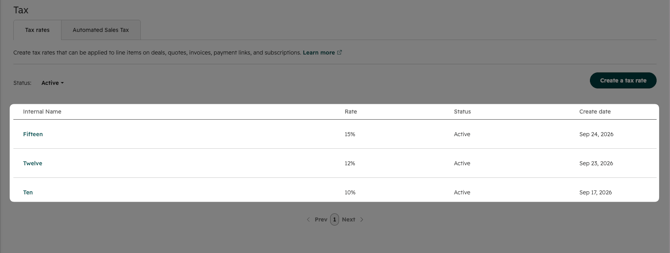
The integration never guesses. If a Flex line's tax percentage has no matching HubSpot rate, or more than one of your rates matches it, the line still syncs, but without a rate reference — HubSpot does not compute tax on it. The Transaction Log records a warning on the deal's sync entry, naming how many lines were written without a tax rate, and the sync completes normally. Tax configuration never fails a sync.
Discount lines are taxed at the document's rate, not left untaxed. A deal's discount lines come from Flex's negative custom rows (a row such as Total Discount), and the integration points each one at the HubSpot rate matching the tax percentage the document's own lines carry — the same percentage match as any other line, so no additional rate setup is needed. The never-guess rule applies here too: if a document's lines carry two or more different tax percentages, no single rate is correct, so the discount line is written without a rate reference and the Transaction Log warning above counts it. A document with no taxed lines offers no rate for it to take, and the line is written without one.
The deal's total is Flex's. The sync writes the deal's Amount from Flex's own document total — tax-inclusive and after any discounts — so it is deliberately larger than the sum of the synced line items, which are net of tax. Flex is the only source for this figure. If you edit line items in HubSpot's editor and accept its "update the deal amount" prompt, HubSpot replaces that figure with the tax-free line sum; the next sync that sees your edit writes Flex's total back. An edit you make to the Amount or to a synced line item does not stick — the sync treats those figures as Flex's and repairs them rather than preserving your change, so make the change in Flex.
The document's sales tax is recorded on the deal as Flex Sales Tax (loomium_flex_sales_tax) so the sidecard can show it.
Scheduler tab
How often the integration reconciles out-of-sync records automatically.
Scheduler frequency — sets how often the automated sync runs. Options: 6h, 12h, or 24h (default).
This is what determines how stale a linked record can get. Flex cannot notify HubSpot when a record changes, so a Flex-side edit waits for the next scheduled run. You can sync one linked record on demand with the Sync button on its card, but there is no way to trigger the scheduled run itself by hand — so if your team edits records in Flex regularly and wants those changes in HubSpot the same day, shorten this to 6h.
The scheduled run covers linked contacts, companies, and deals.
Transaction Log
The Transaction Log tab records what the integration has done. Most of the time you will not need it; when a sync has not produced what you expected, it tells you whether the integration tried, and what happened.
Reading the table
| Column | What it shows |
|---|---|
| Time | When the action ran |
| Action | The internal operation name — see below |
| Trigger | Manual card, Workflow action, Scheduler, or Flex webhook |
| Entity | The HubSpot record involved, by name where the integration read one |
| Number | The Flex document number, such as Q26-1234, or — |
| Outcome | Success, Error, or Skipped |
| Detail | A one-line summary, plus a Details button where more was recorded |
Time, Action, Trigger, Entity, and Outcome can be sorted; Number and Detail cannot. Results are paged 25 at a time, with first and last page buttons.
Note: Entity shows the name of the record the row is about. Rows about no single record — a scheduled scan, a workflow action, or a failure before the record could be read — show a short label built from what the integration knows instead, such as deal 18742001 or contact. Filtering and sorting on Entity work against that same displayed value. Rows written before the integration started storing the label show the short type-and-id label and do not match an Entity filter; that is expected, and enriching those older rows is not planned.
Action names are a mix of internal identifiers and plain English:
CREATE_CONTACT_FOR_CONTACT— created a new Flex contact from a HubSpot contactSYNC_CONTACT_FOR_CONTACT— synced an existing linked contactSYNC_CONTACT_FOR_CONTACT_FIELD_SKIPPED— left a field on a linked contact as Flex had itCREATE_CONTACT_FOR_COMPANY— created a new Flex company from a HubSpot companySYNC_CONTACT_FOR_COMPANY— synced an existing linked companySYNC_CONTACT_FOR_COMPANY_FIELD_SKIPPED— left a field on a linked company as Flex had itUNLINK_CONTACT_FOR_CONTACT,UNLINK_COMPANY_FOR_COMPANY,UNLINK_DEAL_FOR_DEAL— unlinked the HubSpot record from its Flex counterpartCREATE_OPERATION— created a Flex Project Element from a dealDeal synced— synced an existing linked dealPROCESS_CONTACTS_FOR_DEALandPROCESS_CONTACTS_FOR_DEAL_CONTACT_FAILED— reconciling a deal's associated contacts and companies hit a problemContact sync skipped,Deal sync skipped— the scheduled run passed over a linked record; the reason is in DetailContact sync failed,Company sync failed,Deal sync failed— the scheduled run could not process a linked record
Filtering
Use the filters above the table to narrow things down, then click Apply filters. Clear filters returns to showing everything.
- From date, From time, To date, To time — the range to show. Times are chosen in 15-minute steps. No range is applied by default, so the log shows all history until you set one.
- Action — free text, matched against the action names above.
- Trigger — All triggers, Workflow action, Manual card, Scheduler, or Flex webhook.
- Entity — free text, matched case-insensitively against the name shown in the Entity column. A term that names a record returns every row about it; a row about no single record matches its type, such as
dealorcontact. - Number — free text, matched against the Flex document number.
- Outcome — All outcomes, Success, Error, or Skipped.
Filtering by Error is the fastest way to find what went wrong. A Skipped row records something the integration deliberately did not do — a field it left as Flex had it, or a linked record the scheduled run passed over.
Note: Contact and company card actions are currently recorded with a trigger of Workflow action rather than Manual card, so filtering by Manual card will not show them. Project Element creation from a deal card is recorded as Manual card. Leave Trigger on All triggers when you are looking for something specific.
Seeing the detail
Where an operation recorded its individual steps, a Details button appears in the Detail column. It opens a window titled with the action and timestamp, listing each step with its Timestamp, Level, and Message. Steps that failed show their error text beneath the message. This is the most useful view when a sync reports Error and the one-line summary is not enough to explain why.
Only steps at info level and above are shown by default. Switch on Show debug detail at the top of the window to include debug steps; if there are none, the window reads "No non-debug detail events recorded."
What does and does not appear
Today the log records:
- Creating or linking a Flex contact or company from a card, and syncing a linked deal.
- Unlinking a contact, company, or deal from its card.
- Creating a Project Element from a deal card.
- The scheduled run, whenever it changed a linked contact, company, or deal, and whenever it skipped or failed one.
It does not record:
- A scheduled run that found nothing to change — a record already in step leaves no entry.
- Unlinking a record that was not linked in the first place.
An action missing from the log has not necessarily failed. Check those two cases before concluding something went wrong.
If the log will not load you will see "We couldn't load the transaction log." with a Retry button.
Need help?
For additional support, visit support.squarewave.com.au or contact your Loomium administrator.