
Daybook is designed to show you everything happening on a single day. It retrieves the element definitions and statuses your admin has configured in Admin Settings from Flex, and displays them in a table.
This gives you a combined view of all inbound and outbound jobs for any given day — something that would otherwise require multiple tabs or windows in Flex.
Accessing Daybook
- Log in to Loomium using your Flex credentials
- Navigate to Operations > Daybook in the navigation bar or use this direct link
Note: You must have access to the Operations Loom to use this feature.
Navigating by Date
Daybook defaults to today's date when you first open it.
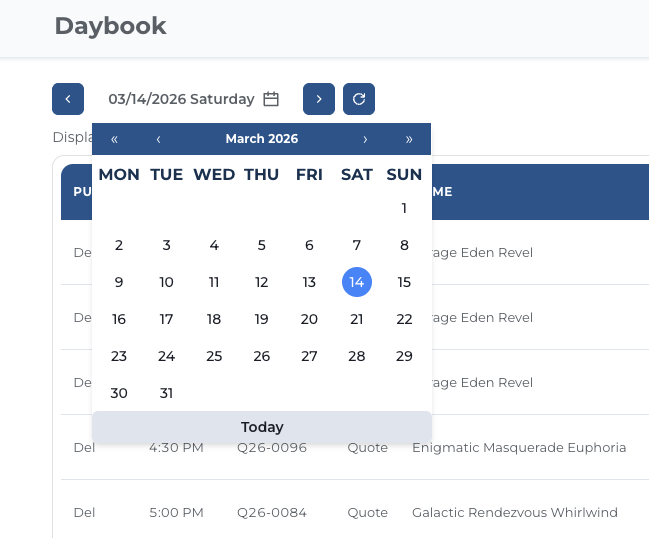
- Date display: The center button displays the selected date along with the day of the week (e.g., "03/27/2026 Friday"). It respects the Date Format configured in your user profile.
- Arrow buttons (
</>): Move backward or forward one day at a time. - Date button: Click the date display to open a calendar popup. Select any date, or click Today to jump back to the current date.
- Shareable URLs: The selected date is stored in the URL (e.g.,
/operations/daybook?date=2026-03-27). Copy and share the URL to point someone to a specific day.
Timezones & Location Highlights
Daybook is timezone-aware and ensures that all times and dates reflect your Homebase Location (as configured in Flex), regardless of where the equipment is actually located.
Automatic Translation
All times are automatically translated to your homebase timezone.
Location Mismatch Highlights
If an item's business location is different from your homebase location, its date and time cells will be highlighted with a soft yellow background.
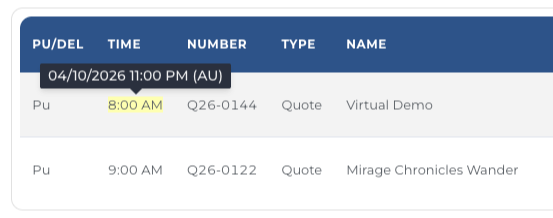
- Hover for original time: Hover your mouse over any highlighted cell to see a tooltip containing the original date and time in that item's local timezone.
Refreshing Data
Click the refresh button (circular arrow icon, right side of the filter bar) to re-fetch data for the current date without reloading the entire page. This is useful if you've made changes in Flex and want to see them reflected immediately.
Customizing Columns
Click the gear icon (far right of the filter bar) to open the column picker.
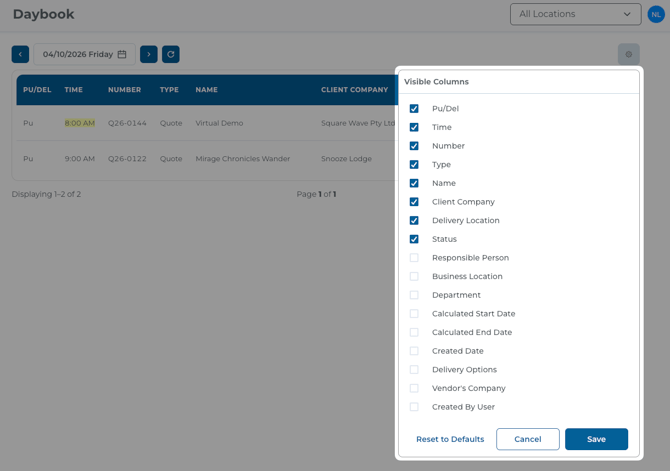
- Check or uncheck columns to control what's visible in the table.
- Click Save to apply your changes. Your preferences are saved to your account and persist across sessions.
- Click Reset to Defaults to restore the original column set.
- Click Cancel or press Escape to close without saving.
You must keep at least 3 columns selected.
Default columns: Pu/Del, Time, Number, Type, Name, Client Company, Delivery Location, Status.
Additional columns available: Responsible Person, Business Location, Department, Calculated Start Date, Calculated End Date, Created Date, Delivery Options, Vendor's Company, Created By User.
Reading the Table
Pu/Del Column
- Del (Delivery) — The job's start date matches the selected date (equipment going out for delivery).
- Pu (Pickup) — The job's end date matches the selected date (equipment returning).
Status Badges
The Status column displays colored badges that match the colors configured in Flex for each workflow status.
Double-Click to Open in Flex
Double-click any row to open that element directly in Flex in a new browser tab.
Sort Order
The table is sorted automatically using these criteria in order:
- Time — earliest first
- Direction — deliveries before pickups
- Type — alphabetical
- Client Company — alphabetical
- Name — alphabetical
There are no user-adjustable sort controls at this time.
Pagination
The table displays up to 50 rows per page. When there are more than 50 results, pagination controls at the bottom of the table navigate between pages.
Admin Settings
Administrators can configure which element types and workflow statuses appear in Daybook. See the Daybook Admin Settings guide.
Need Help?
For additional support, visit https://support.loomium.io or contact your Loomium administrator.